Appearance
Create a walkthrough
A walkthrough is one narrated video of one plan. You create it as a draft, set its checkpoints, preview it, and publish it when it's ready to send.
Open Walkthroughs and press New walkthrough.
Title and purpose
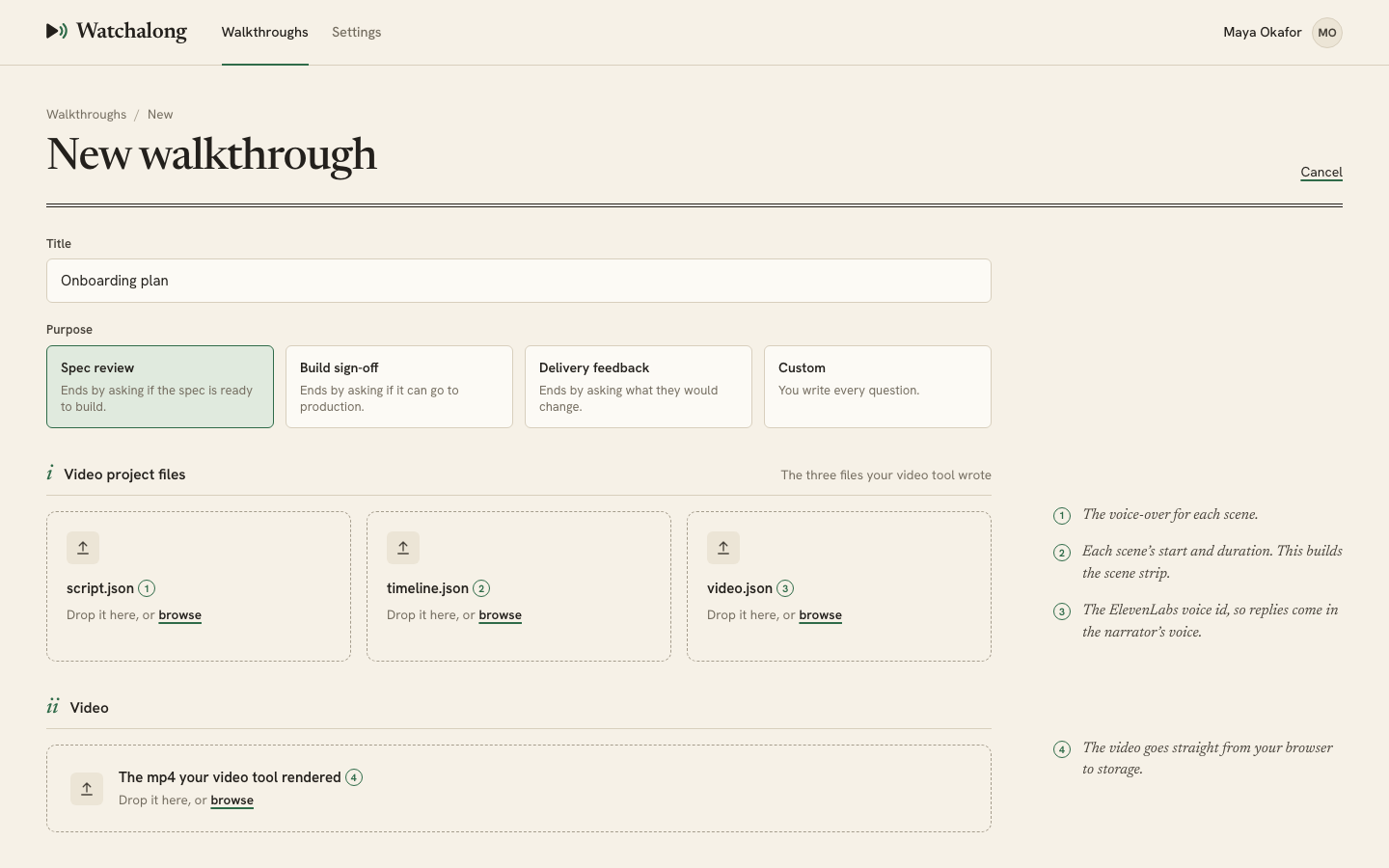
Give the walkthrough a title. Your client sees it on the first screen, so write it for them.
Then pick a purpose. It decides the wording of the questions the narrator asks and the question it closes with.
| Purpose | What it ends with |
|---|---|
| Spec review | Asks if the spec is ready to build |
| Build sign-off | Asks if it can go to production |
| Delivery feedback | Asks what your client would change |
| Custom | You write every question. This is the default |
Spec review and Build sign-off close with a sign-off question, and the session records whether your client approved or asked for changes. Checkpoints has the full wording for each purpose.
The draft is created once the title is in and the three project files have been read, whichever comes last. The title counts as in when you press Enter or move to another field. From then on the title and purpose are fixed for the import. You can rename the walkthrough later, but you can't change its purpose. To send the same video with another purpose, import it again.
Import the video
The page has three sections. Fill them in any order.
- Video project files. Drop
script.json,timeline.jsonandvideo.jsonon their cards, or browse for them. Each card shows what it read, such as the number of scenes and the voice id. Make the video has the shape of each file. - Video. Drop the
.mp4. It uploads straight from your browser to storage and shows its progress. Keep the tab open until it says Uploaded. - Plan document. Attach the plan as Markdown or PDF. You can also do this later.
The counter at the bottom shows how many of the files are in. When the title, the three project files and the video are in, press Import walkthrough. Watchalong confirms the video, attaches the plan, and opens the walkthrough's edit page.
If you change your mind, press Cancel and then Discard. The draft and its files are deleted.
Attach the plan document
The plan document is what the narrator answers your client's questions from. The narrator reads two things, this document and the video's voice-over, and nothing else.
- Markdown (
.mdor.markdown) or PDF, up to 20 MB. - A PDF needs a text layer. A scanned PDF with no text can't be read. Attach the Markdown source or a PDF exported from your editor instead.
- Watchalong keeps the original file and pulls its text out for the narrator. Your client can open the original from their recap page.
To attach or replace the document on a draft, open the Plan document tab on the edit page. Drop a file or choose one. Replacing it deletes the old file. A walkthrough has one plan document at a time.
Once a walkthrough is published, its plan document can't change. To use a different plan, import the video again as a new walkthrough.
The edit page
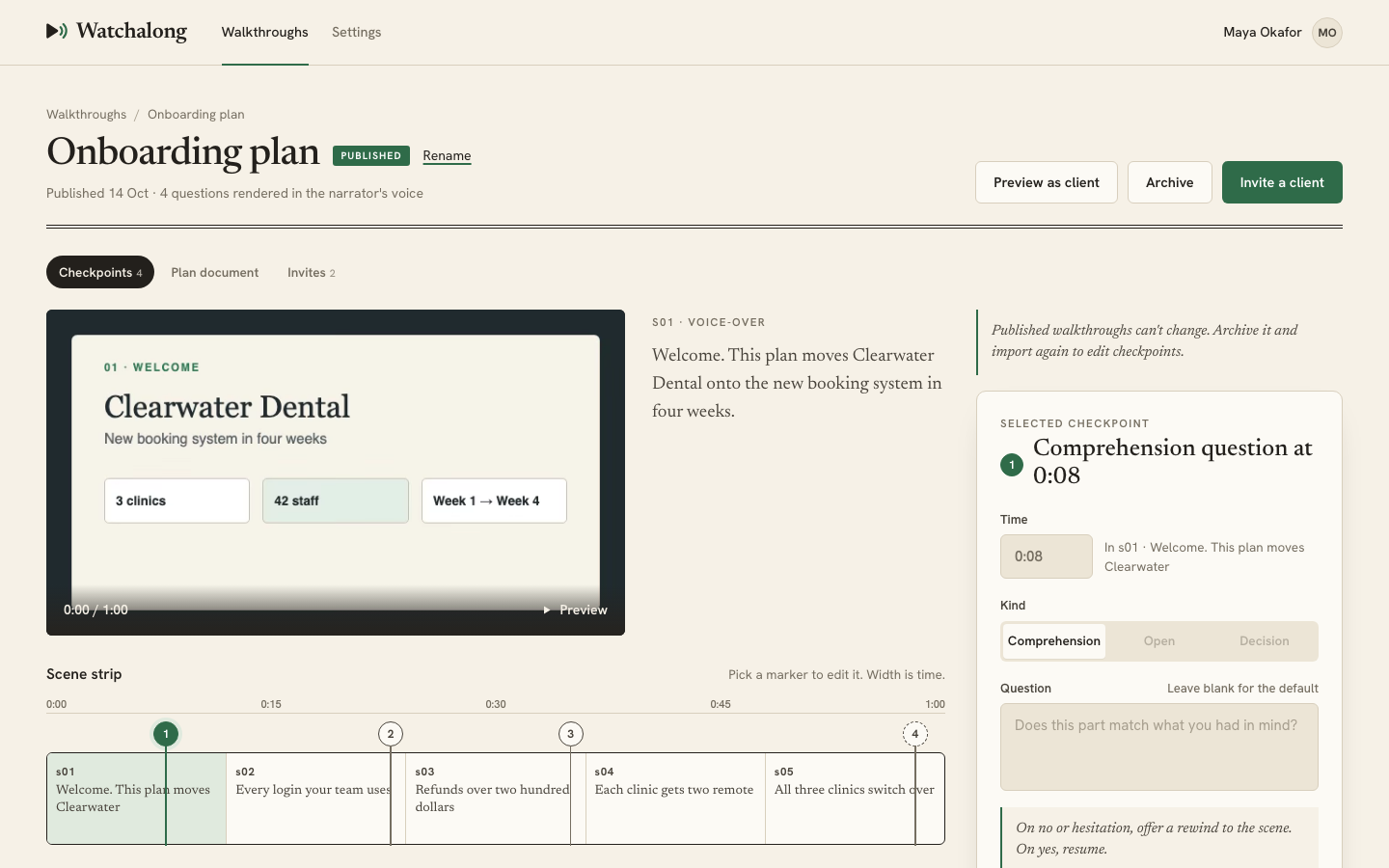
The edit page header shows the title, the status, the number of scenes, the length, whether a plan is attached, and the number of checkpoints. It has three tabs:
- Checkpoints, where you set the points the video stops at. See Checkpoints.
- Plan document, where you attach or replace the plan.
- Invites, where you invite clients once the walkthrough is published. See Publish and invite clients.
If the video didn't finish uploading during the import, the edit page asks for it again. Drop the .mp4 or choose the file.
Preview as client
Press Preview as client to watch the walkthrough the way your client will. It opens in a new tab.
- The video plays and stops at each checkpoint with its question. Press Continue to carry on.
- Nothing is recorded. There's no microphone and no narrator conversation in a preview.
- A draft's questions have no audio yet. Watchalong renders them in the narrator's voice when you publish, so the preview shows them as text.
Use the preview to check that each checkpoint lands at a sensible moment, after the scene it asks about.
Next
Set the walkthrough's checkpoints.