Appearance
Publish and invite clients
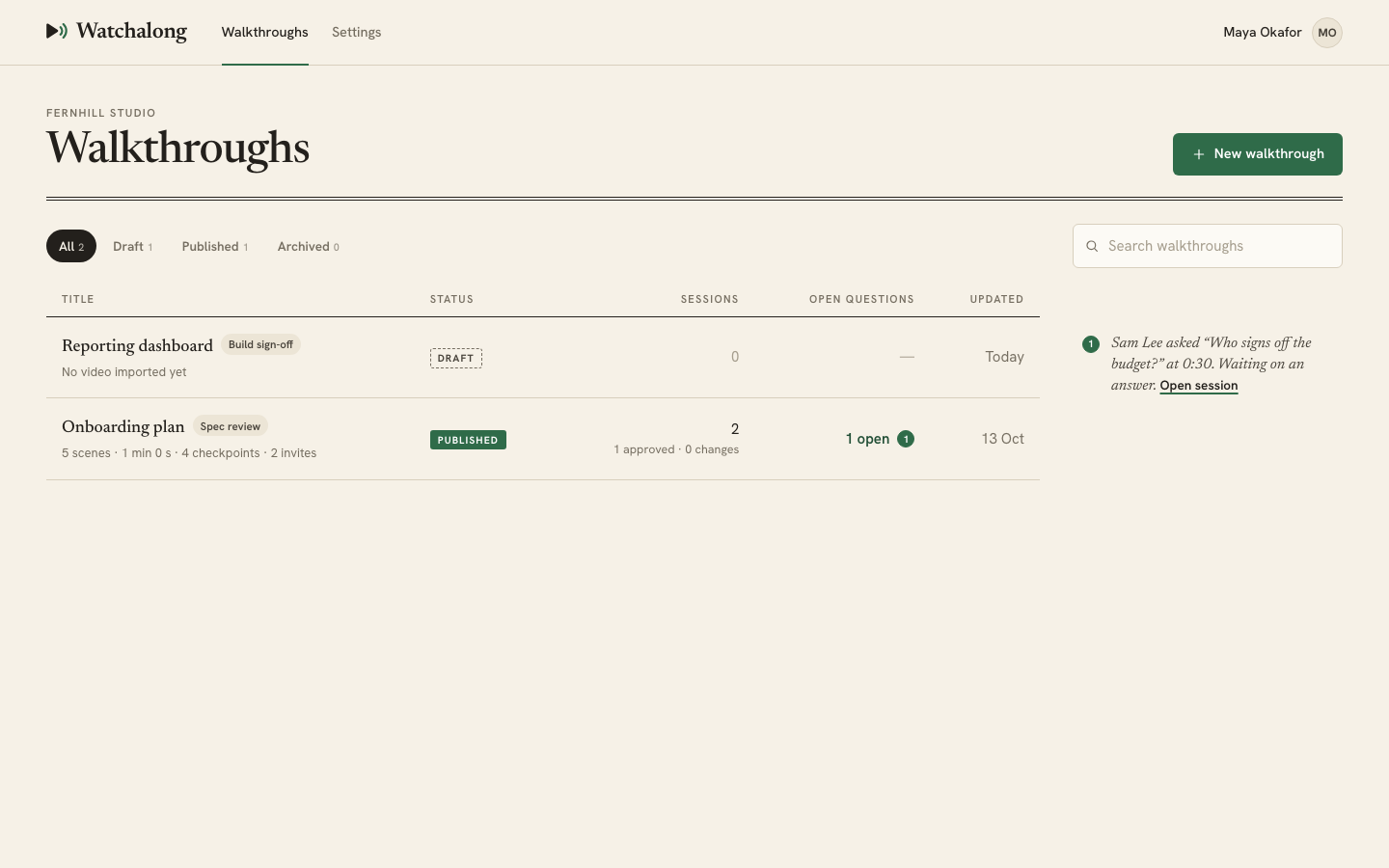
A draft can't be sent to anyone. Publish it first, then create an invite link for each client.
Walkthrough states
| State | What you can do |
|---|---|
| Draft | Change the video, the plan document and the checkpoints. Preview. Publish or discard it. |
| Published | Invite clients and read their sessions. The video, plan and checkpoints are fixed. Archive it. |
| Archived | Read past sessions. Existing links keep working. No new invites. |
You can rename a walkthrough in any state. There's no way back from Archived to Published, and no way back from Published to Draft.
Publish
Press Publish on a draft's edit page. Watchalong renders each checkpoint question once in the narrator's voice and stores the audio, so a published walkthrough always asks its questions out loud. Rendering can take a little while. The page tells you when it's still working and updates when it's done.
Before it publishes, Watchalong checks that:
- the video is uploaded and confirmed
- the walkthrough has a narrator voice, from
video.json - there's at least one checkpoint
- the last checkpoint is within 10 seconds of the end
- Sign-off is only on that closing checkpoint
- your checkpoint changes are saved
If any check fails, the page says which one, and nothing is published.
The narrator's voice runs on a monthly character allowance. If there isn't enough left to render your questions, publishing stops with "The ElevenLabs character quota cannot cover the checkpoint questions. Nothing was published." Try again later, or shorten the questions.
What publishing locks
Once published, these can't change:
- the video
- the plan document
- the checkpoints and their questions
- the purpose
The title can still change. To change anything else, archive the walkthrough and import the video again as a new one.
Invite a client
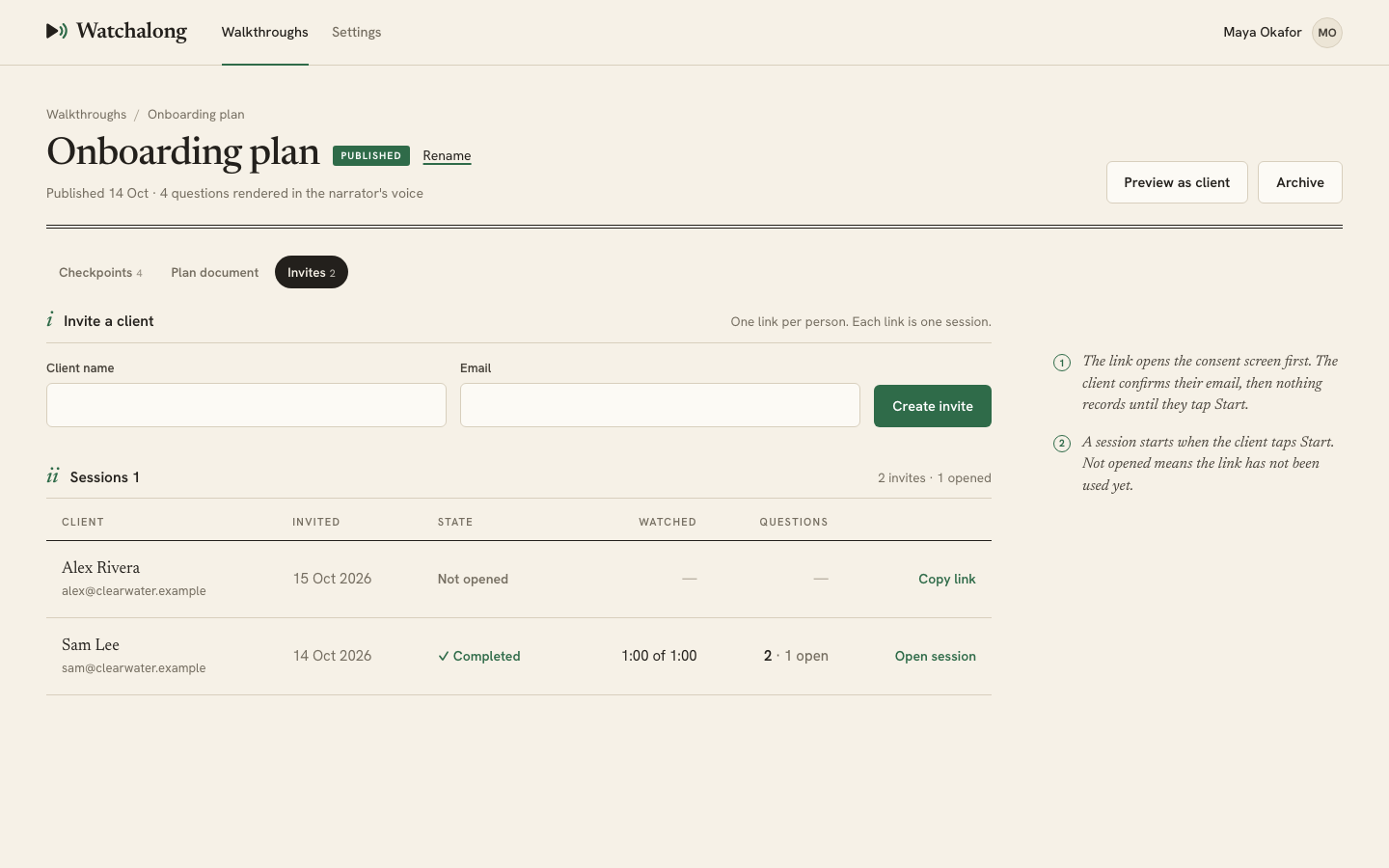
Open the Invites tab on a published walkthrough, or press Invite a client.
- Enter the client's name and email.
- Press Create invite.
- Press Copy link and send the link to your client however you like, by email, chat or text.
Watchalong doesn't email the link for you. You send it.
- One link per person. Each link is one session. If two people need to watch, create two invites.
- The link only opens for that email address. Your client confirms the address on the first screen. Don't share links between people.
- The link works for 14 days from when you create it. After that it shows "This link isn't valid any more". Create a new invite if your client needs another go.
- The link keeps working after the session within those 14 days. It opens your client's recap.
- You can't cancel a link once you've created it.
The Invites tab lists every invite as a session, with its state.
| State | Meaning |
|---|---|
| Not opened | The link hasn't been used yet. Copy link copies it again. |
| Consented | Your client confirmed their email and tapped Start. |
| Watching now | Your client is in the session. |
| Completed | The session has ended. |
Each row shows how much of the video your client watched and how many questions they raised. Press Open session to read it. See Read a session.
Rename
Press Rename next to the title, change it, and press Save. It works on drafts, published and archived walkthroughs. New sessions show the new title. Emails that already went out keep the old one.
Archive
Press Archive on a published walkthrough and confirm. Archiving takes it out of use without losing anything.
- Sessions, transcripts and open questions are kept, and you can still read and answer them.
- Links you've already sent keep working, including for clients who haven't watched yet.
- You can't create new invites.
- The video, the question audio and the plan document are kept.
Archived walkthroughs move to the Archived tab of the walkthroughs list.
Discard a draft
Press Discard on a draft and confirm. This deletes the draft for good, along with its scenes, checkpoints, video and plan document. There's no undo.
Only drafts can be discarded. A published walkthrough has sessions to keep, so archive it instead.