Appearance
Read a session
A session is one client's viewing of one walkthrough. It holds everything they said, where in the video they said it, what the narrator replied, and the questions still waiting on you.
Any member of your organisation can read, answer and follow up any session, whoever sent the invite.
Find a session
- Open the walkthrough, go to the Invites tab, and press Open session on a row.
- The digest email has an Open the session button.
- The walkthroughs list shows the newest waiting question beside the list, with an Open session link.
The digest email
When a session ends, the member who created the invite gets an email within about a minute. If the narrator is still replying to your client's last answer, the email waits up to two minutes for it, so a sign-off given at the very end makes it in.
The subject tells you how it went:
- "{client} approved {title}"
- "{client} asked for changes on {title}"
- "{client} watched {title}", when there's no sign-off
The email shows how long your client watched, then the sign-off and its reasons when the walkthrough asked for one, a short summary of what they said, and the open questions.
A session ends when your client reaches the end of the walkthrough. If they close the page before it can finish, Watchalong ends the session for them once they've reached the end of the video and gone quiet for 30 minutes. The digest goes out then.
The session page
The header shows the client's name, when they watched, how much of the video they saw, and how many questions they raised.
Sign-off
When the walkthrough has a Sign-off checkpoint, a banner at the top shows Approved, Changes requested or No sign-off recorded, with your client's reasons. Press Jump to to play the video from the moment they answered.
The video and the transcript
The video plays with the transcript beside it. The line at the playhead is highlighted as the video plays. Click any line to jump the video to that moment.
The transcript shows, in order:
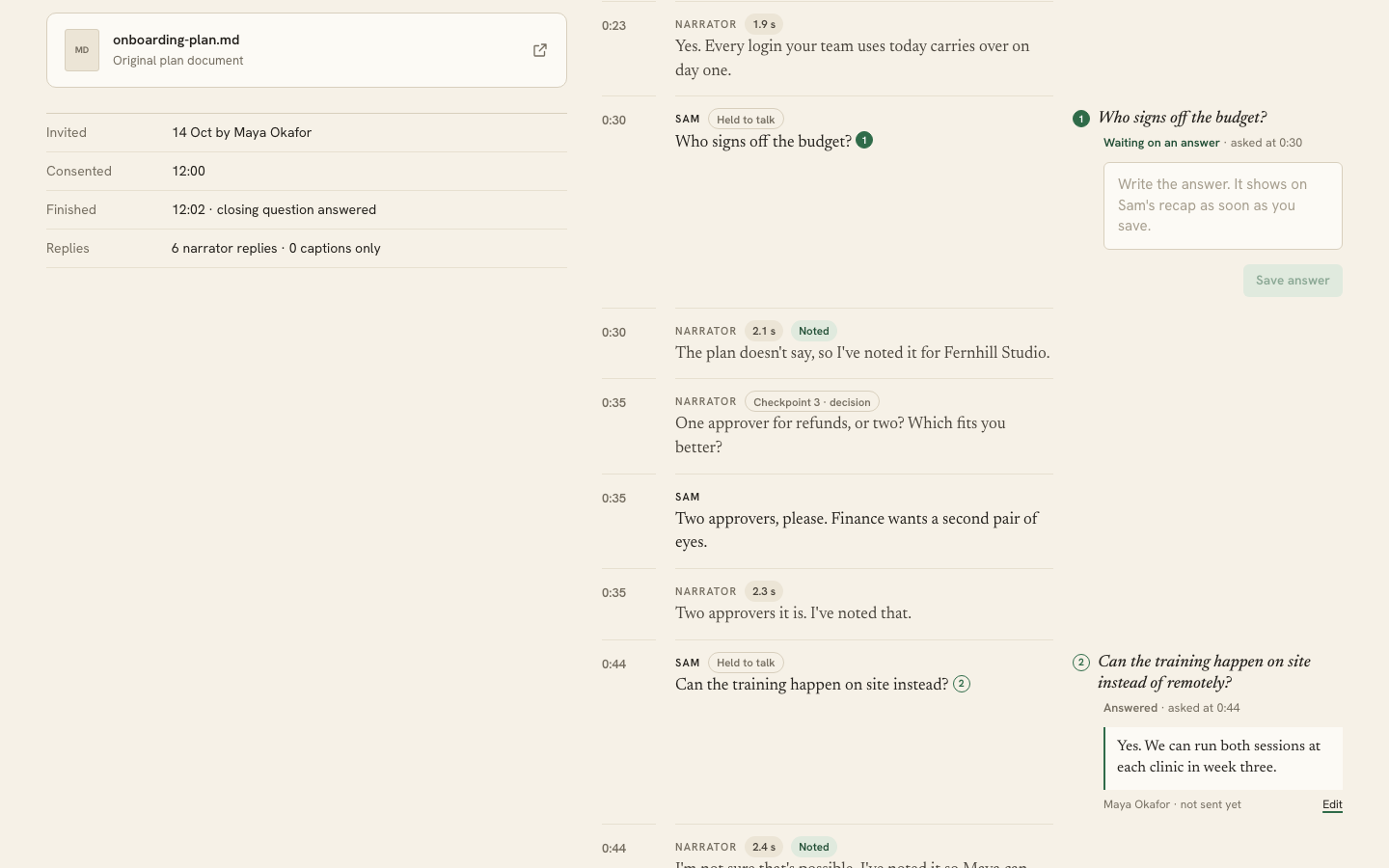
- when your client consented and started
- each checkpoint question the narrator asked
- each thing your client said, marked Held to talk when they stopped the video to ask
- each narrator reply, with how long it took. A reply marked Noted logged an open question. One marked Captions only was shown as text because the voice couldn't be rendered.
- when your client went back to an earlier point
- when they switched away from the tab, and for how long
The event strip
Under the video, the event strip shows the whole session against the video's timeline, in four lanes:
- Pauses, at checkpoints and when your client held to talk
- Seeks, when your client jumped back
- Hidden, while the tab was in the background
- Speech, each time your client spoke
Hover a mark to see what happened and when. The green line is the playhead.
Session facts
Beside the video you'll find when the client was invited and by whom, when they consented, whether they finished or where they left, and how many narrator replies there were. The Original plan button opens the plan document the walkthrough was published with.
Answer open questions
When the narrator can't answer from the plan, it logs the question. Each one sits beside the line that raised it, with the time in the video.
- Write the answer in the box.
- Press Save answer.
The answer shows on your client's recap page as soon as you save it. They don't need an email to see it.
To change an answer, press Edit, change it, and save. The new answer replaces the old one, and it goes out in the next follow-up.
The header of the questions column shows how many are answered.
Send the follow-up email
Watchalong doesn't email your client when you answer. You decide when. Press Send follow-up once you've answered what you can.
- The email goes to your client, with the subject "Answers to your questions on {title}".
- It carries every answer saved since the last follow-up, and a button to open their recap.
- After a send, each answer shows "sent in follow-up". Answers not yet sent show "not sent yet".
- The button is off when there's nothing new to send.
Export
Press Markdown or CSV next to Export at the top of the page.
Markdown gives you the full transcript and the open questions, with timestamps:
md
# Sam Lee · Onboarding plan

## Transcript

**[01:42] Checkpoint 1 · comprehension**

Sam Lee: Mostly, but I lost track of the approvals bit.

Narrator: Approvals happen in scene three. Want me to take you back to it?

## Open questions

1. [02:15] Who signs off the budget?
   Answer: Priya does, by the end of the month.
CSV lists every question the narrator logged, answered or not, with the columns video_time, question, status, answer and answered_at. It opens in any spreadsheet.